Managing Your Addresses
Managing Your Addresses
Save your addresses once and stop typing them forever. Your account keeps your shipping and billing addresses on file, so checkout is a couple of clicks instead of a form.
Where your addresses live
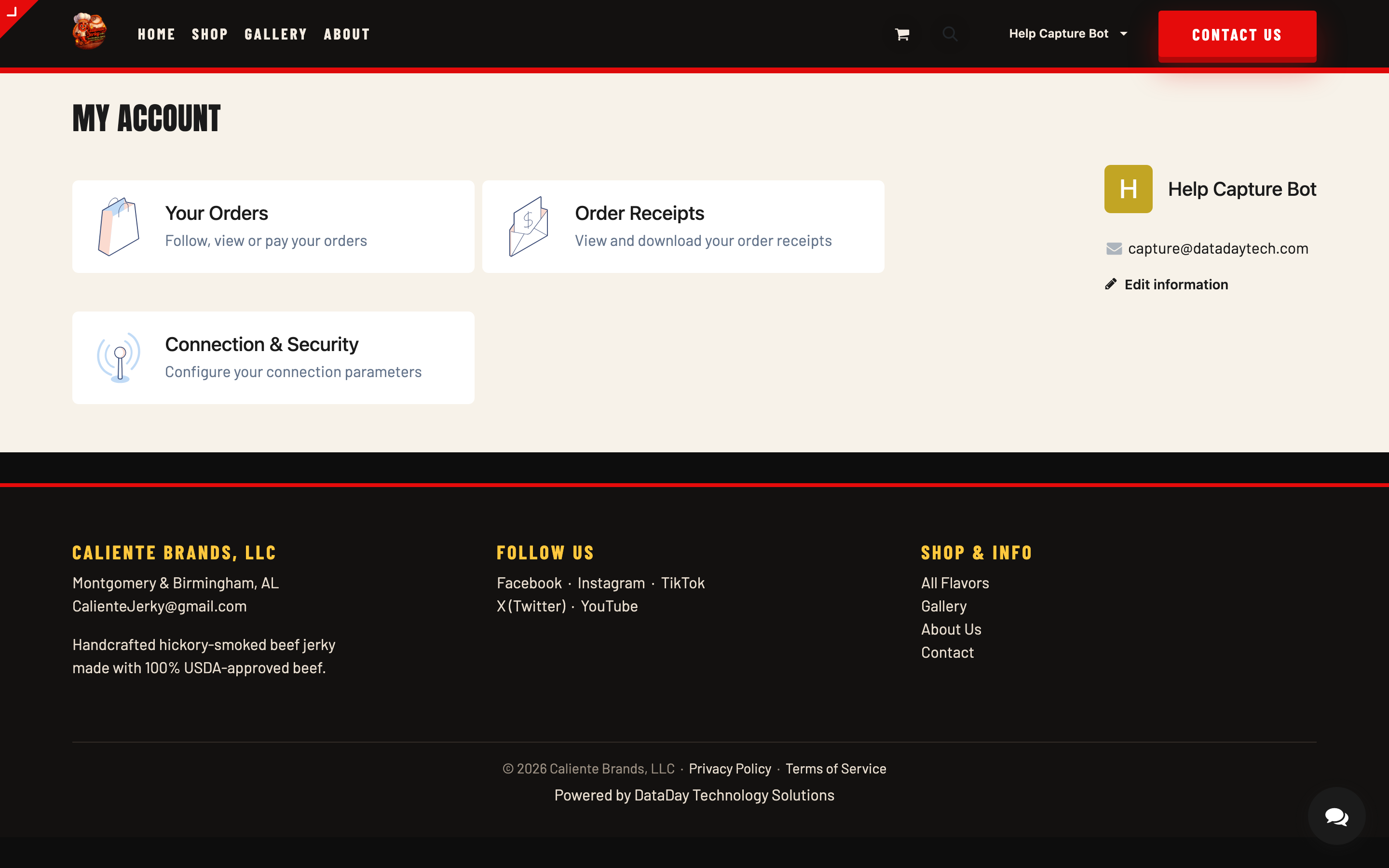
- Sign in and click your name, then My Account.
- Open the Addresses card.
- From there you can add a new address or edit an existing one.
Adding and editing addresses
Click Add address (or the edit icon on an existing one), fill in the details, and save. You can keep several on file — home, office, the in-laws who suddenly love you more during the holidays.
You can also add a new address mid-checkout: when you reach the address step, choose to ship to a different address and it'll be saved with your account for next time.
Picking an address at checkout
At checkout, your saved addresses appear on the address step — pick the one you want and keep moving. Billing and shipping can be different addresses, so gift orders won't spoil the surprise with a receipt to the recipient.
Placed an order with the wrong address? Editing your saved address won't change an order that's already in motion. Contact us right away — contact page or [email protected] with your order number — and if it hasn't shipped yet, we'll do our best to catch it.
Keeping things tidy
Moved house? Update your address before your next order rather than during checkout-in-a-hurry — future you will appreciate it. If you spot an old address you can't seem to change, message us and we'll clean it up from our side.